HiPaint: Sketch, Draw & Paint
- 4.3
- Rating
- 5.00M
- Installs
- Free
- Price
 Analysis by App-foxy
I spent time with HiPaint as a drawing and painting tool, and my first impression was that it aims to make digital art feel approachable without reducing it to a simple coloring pad. It sits in the Art & Design category, comes from developer HiPaint, and is free to install. That combination makes it easy to try, especially if you want to sketch on an Android device without committing to a paid desktop program.
The important distinction is that this is not just an app for making quick doodles. Its appeal is the space between a casual sketchbook and a more serious illustration workspace. I could imagine using it for rough character ideas, cleaned-up line art, painted studies, lettering experiments, or a small animation concept. At the same time, it does not automatically replace a full desktop art suite. Whether it feels complete depends heavily on the size of your device, the stylus you use, and how demanding your workflow is.
HiPaint has built a sizable audience, with more than a million installs and an average score of 4.3 from roughly fifty-four thousand ratings. I read those figures as a sign that the app is accessible enough for many people to keep around, rather than proof that it will suit every artist. My own view is more specific: it is a useful starting point for mobile and tablet drawing, but the best experience comes when you treat it as a flexible canvas rather than as a complete replacement for every professional tool.
You May Also Like

 Blood Strike: 2.5 Anniversary
Blood Strike’s Loadouts Turn Every Drop Into a Tactical Gamble
A close look at Blood Strike’s custom loadouts: how fast access to signature weapons reshapes its battle royale rhythm, rewards preparation, and narrows the gap between fights.

 Pandora - Music & Podcasts
Pandora’s Music Is Easy to Start, but Harder to Recover
Pandora’s strength is its low-effort path from a seed to a station. Its weak spot is how much confidence it asks you to place in connection, setup, and quiet recovery.

 8 Ball Pool
 Is Built on Rivalries, Rematches, and Routine
A close look at the rivalries, rematches, shared routines, and unanswered safety questions that turn a quick pool match into a persistent mobile community.

 Samsung Music
’s Quiet Strength Is Playing What You Already Own
Its reach comes less from spectacle than from dependable access to a personal library. That simplicity is both the app’s strongest retention engine and its ceiling.

 AccuWeather: Weather Radar
AccuWeather Review: A Quick, Clear Forecast for Everyday Decisions
For everyday plans, the best forecast is the one you can understand quickly. AccuWeather makes rain timing, radar, and local conditions easy to act on, with a few trade-offs.

 Hill Climb Racing
Why Hill Climb Racing Still Turns Crashes Into One More Run
A tiny car, a bumpy hill and one more upgrade: Hill Climb Racing keeps resurfacing because its simple chaos makes every near-miss feel personal.
More From Our News Desk



What the drawing experience feels like in everyday use
The most natural way to approach HiPaint is to begin with a small project instead of trying to master every control at once. I would start with a loose sketch, test a few brush behaviors, and then decide whether the interface supports the kind of mark-making I want. That gradual approach matters because drawing apps can feel overwhelming when every panel is visible before you have a reason to use it.
For a simple everyday scenario, imagine sitting in a café and noticing an interesting building across the street. I would use the app to block in the main shape, add a few perspective lines, and then place a separate layer of darker details over the sketch. Later, I could return to the same canvas and turn the study into a more polished illustration. That workflow is more useful than a quick screenshot because the drawing remains editable while the idea develops.
I also found the app better suited to short, repeatable sessions than to an all-day production schedule. A ten-minute sketch before work, a color study during a commute, or a visual note for a craft project are realistic uses. The free entry point removes much of the hesitation involved in opening a new canvas, and the age rating of Everyone makes it approachable for families and younger learners as well as adults.
That accessibility does not mean the results are automatic. The quality of a finished piece still depends on brush control, hand stability, and the time spent refining edges and color. HiPaint gives you a place to make those decisions, but it cannot compensate for a cramped screen or an imprecise finger. If you are drawing with touch alone, I would begin with larger shapes and broader brushes before attempting delicate line work.
Why layers matter more than brush variety
One of the most useful habits in a digital art app is separating the stages of a drawing. I prefer to keep a rough construction sketch apart from the cleaner lines, and I place broad color beneath those lines rather than painting everything directly onto one surface. This makes experimentation less stressful because a failed color choice does not force me to redraw the entire subject.
For HiPaint, that layered way of thinking is especially valuable when moving from sketching into illustration. I would use one layer for a loose pose, another for the contour, and additional layers for large color areas and small accents. The practical trade-off is that more layers can make a project harder to organize, particularly on a smaller screen. Naming or grouping your working stages early is a simple discipline that saves time later.
A useful non-obvious workflow is to keep an intentionally messy construction layer instead of erasing every guide as soon as the drawing improves. Lowering its visual prominence, when the interface allows it, lets you compare the final line work with the original gesture. That is helpful for learning anatomy, perspective, and proportion. It turns the app into a practice journal rather than only a place to produce finished images.
Sketching, painting, illustration, and animation ideas
The store positioning covers digital art, drawing, painting, illustration, and animation design, and I think the app makes the most sense when you move between those activities. A sketch can become a painted image, while a painted image can serve as a visual reference for a sequence or motion concept. I would not treat that range as a promise that every specialized animation workflow will feel as deep as a dedicated animation program, but it does make the app versatile for planning and experimentation.
For animation-minded users, a practical approach is to create a clear key pose first, then use additional drawings to explore changes in position, expression, or timing. Even when the final production happens elsewhere, this kind of rough planning is valuable. HiPaint can serve as the place where you work out the visual idea before moving it into a tool designed specifically for timeline-heavy production.
That distinction is important for choosing the right alternative. If your priority is frame-by-frame animation management, a dedicated animation application may be more comfortable. If your priority is painting on a large canvas with extensive asset management, a desktop illustration suite may offer a stronger long-term home. HiPaint is more attractive when you want drawing, painting, and visual planning in one relatively approachable mobile environment.
Stylus, touch, and the size of your device
Your hardware will shape your opinion of the app almost as much as the software itself. On a larger tablet, I can imagine using a stylus for cleaner strokes and keeping the canvas visible while adjusting tools. On a phone, the same controls may feel tighter, and the hand can cover more of the artwork. That does not make phone drawing useless; it simply favors thumbnails, studies, notes, and compact illustrations over highly detailed compositions.
I would test the app with the exact device and stylus combination I plan to use before starting a serious project. A brush that feels comfortable with a pen may be frustrating with a fingertip, while a canvas that seems spacious in portrait orientation may feel constrained when you rotate the device. This is one of the app’s main trade-offs: portability is convenient, but the physical drawing area remains smaller than a desktop monitor or dedicated pen display.
For beginners, I recommend practicing controlled strokes on a blank canvas before attempting a finished portrait. Try slow curves, quick hatching, broad fills, and repeated circles. This reveals whether the input method feels predictable and helps you choose a brush size that does not magnify small hand movements. It is a modest tip, but it prevents the common mistake of blaming the app for a mismatch between the tool and the device.
Trust, controls, and making careful choices
Because HiPaint is a free app with optional purchases, I would approach it with the same practical care I use for any creative download. The listed price is free, while individual in-app purchases range from ninety-nine cents to nineteen dollars and ninety-nine cents. That does not make the app unsuitable, but it does mean I would review each purchase screen carefully and avoid assuming that every brush, asset, or convenience is included at no cost.
The developer is identified as HiPaint, and the current version is 6.2.5. I like having that visible version context when deciding whether to install or update, since drawing projects can be important personal work. Before a major update, I would finish or back up anything that matters to me through the app’s available device options, rather than trusting a single working copy. That is a sensible habit for any creative software.
I also pay attention to the choices presented during installation and normal use. If the app requests access, displays a purchase prompt, or offers an account-related option, I would read the wording instead of tapping through automatically. The useful principle is simple: grant only what is necessary for the action I am trying to perform, and revisit device settings if I change my mind. This keeps the decision in the user’s hands without making assumptions about permissions or data practices.
Data-sensitive moments can appear when a drawing leaves the device, when an image is shared, or when a user connects a service. I would pause at those points and check the destination, audience, and file choice before confirming. A private sketch meant for personal practice should not be shared with the same casualness as a public portfolio image. The app can be convenient, but convenience should not replace a quick review of what I am sending and where it is going.
I would also separate creative experimentation from sensitive material. If I were working on a personal document, a private commission, or an image containing someone’s identifiable information, I would use a cautious workflow: keep the original untouched, create a working copy, and inspect the sharing destination before exporting. This is not a criticism unique to HiPaint; it is the kind of user control that matters whenever an art app becomes part of real work.
Who will get the most from it
HiPaint is a strong candidate for someone who wants a free way to explore digital drawing without immediately buying a larger creative package. Students can use it for visual studies, hobby artists can develop characters and scenes, and casual users can turn a tablet into a more capable sketchbook. The Everyone rating also makes it easier to consider for shared household devices, provided an adult reviews purchase prompts and the device’s normal controls.
I especially recommend it to people who learn by trying. You can begin with a rough drawing, test painting techniques, and gradually develop a personal workflow. The app is also useful for artists who already work elsewhere but want a portable place for thumbnails and visual notes. In that role, it does not need to replace a desktop program to be valuable; it only needs to make capturing an idea quick enough that the idea survives.
It is less convincing for someone who needs a tightly managed professional pipeline from the first sketch to final delivery. If you require advanced file interchange, extensive typography, complex vector editing, large-team review, or specialized animation timelines, I would compare dedicated alternatives before committing. The right question is not whether HiPaint can make attractive art. It can be part of that process. The question is whether its mobile-first environment matches the demands of your projects.
Where the free model helps and where it can distract
Free access is a real advantage because it lowers the cost of learning. I can try a new drawing habit without turning it into a financial decision, and a beginner can discover whether digital painting is enjoyable before purchasing a stylus or a larger software package. That makes HiPaint a sensible first step for experimentation.
The presence of optional purchases introduces a different kind of friction. I would avoid building a workflow around a paid item until I know I actually need it. First learn the basic brushes and canvas habits, then decide whether an extra purchase solves a real limitation. This prevents the common trap of collecting tools instead of improving technique. In my experience, a simple, organized layer structure usually contributes more to a better result than constantly searching for another brush.
Another practical trade-off is portability versus control. A mobile app is always close at hand, but a small display can make detailed cleanup slower. I would use HiPaint for idea capture, studies, and moderate illustrations, then move to a larger environment when precision, file organization, or long sessions become the priority. That hybrid approach is more realistic than expecting one app to be ideal for every stage.
My cautious verdict after using it
HiPaint: Sketch & Draw art is worth trying if you want an approachable digital canvas for sketching, painting, illustration practice, and early animation planning. I like its broad creative purpose, free starting point, and suitability for short sessions. The app feels most useful when I give it a clear job: capture an idea, build a layered study, or develop a visual concept that may later become a finished piece elsewhere.
I would not recommend installing it with the expectation that it will automatically replace a professional desktop suite or a specialized animation workspace. Device size, input quality, project complexity, and purchase choices all affect the experience. I would also keep my own habits around backups, sharing, and permissions, especially when a casual sketch becomes client work or contains personal material.
Overall, HiPaint earns my recommendation for beginners, hobby illustrators, students, and experienced artists who want a portable companion. Its best quality is not that it promises everything; it is that it gives many users a practical place to begin drawing and continue learning. The smartest way to use it is to start free, build a disciplined layer workflow, test it on your actual device, and keep control of every sharing and purchase decision.
FAQs for HiPaint: Sketch, Draw & Paint
01What are the key features of HiPaint: Sketch & Draw Art?
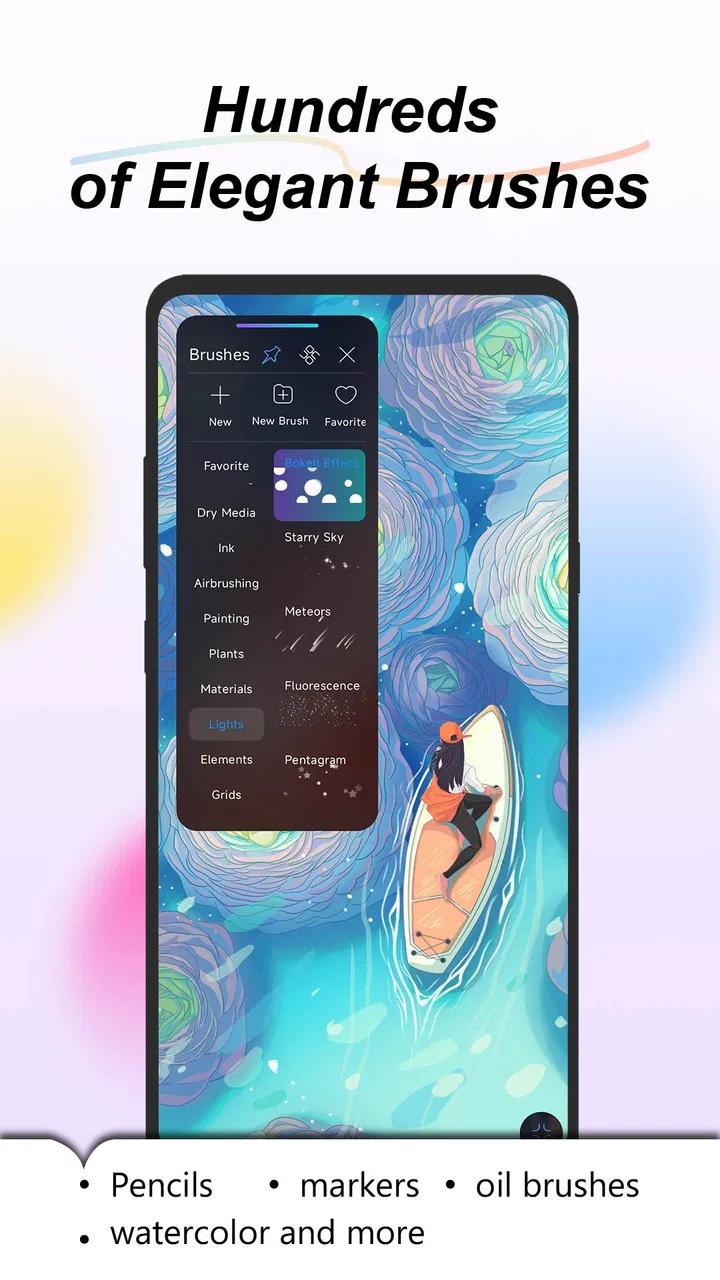
HiPaint offers a variety of features that cater to both beginners and experienced artists. It includes a wide range of brushes, customizable canvas sizes, and advanced layering options. The app also supports stylus pressure sensitivity for more precise control, and it provides a user-friendly interface that makes navigation easy for users of all skill levels.
02Is HiPaint suitable for professional artists?
Yes, HiPaint is designed to meet the needs of both amateur and professional artists. It offers high-resolution canvases and a multitude of professional-grade tools. The app also supports exporting in various formats, making it easy to share your work or integrate it into larger projects. Additionally, its compatibility with styluses enhances precision for detailed work.
03Does HiPaint require an internet connection to function?
HiPaint can be used offline, allowing you to create and edit artworks without an internet connection. However, an internet connection is required for features like cloud saving, accessing online tutorials, and updating the app. This flexibility makes it convenient for users who want to work on their projects anywhere, anytime.
04Are there any in-app purchases in HiPaint?
While HiPaint offers a free version with basic features, there are in-app purchases available for additional tools, brushes, and features. These purchases can enhance the app's functionality, providing more options for customization and creativity. Users can choose to purchase individual items or subscribe to a premium version for full access.
05How user-friendly is HiPaint for beginners?
HiPaint is designed with an intuitive interface that is easy to navigate, making it accessible for beginners. The app includes tutorials and guides to help new users understand the tools and features. Its straightforward design ensures that even those new to digital art can start creating with minimal learning curve, while also offering depth for more advanced users.
Pros
- User-friendly interface for beginners.
- Wide range of brushes and tools.
- Smooth performance with no lag.
- Supports high-resolution exports.
- Customizable workspace layout.
Cons
- Limited free version features.
- Occasional in-app purchase prompts.
- Lacks community sharing features.
- No integrated tutorial guides.
- Requires a stable internet connection.

HiPaint: Sketch, Draw & Paint
Gallery